Fitcoins uses Health Connect to securely read your activity and health data (such as steps and workouts).
Step 1: Open Health Connect on your phone
Health Connect is a system app on Android. You usually won’t see it like a normal app on your home screen. In most cases, you open Health Connect through your phone’s settings. Menu names may vary slightly depending on your device.
If you are using Android 14 or newer:
Health Connect is already built in.
Open Settings
Tap Security & privacy
Tap Privacy settings
Select Health Connect
If you are using Android 13 or older:
You may need to install Health Connect first.
Open the Google Play Store
Search for Health Connect
Install the app
Open Settings
Tap Apps (or a similar menu)
Tap All apps (if available)
Find and select Health Connect
Tap Open
Tip: If you cannot find Health Connect in your settings, search for Health Connect in the Play Store. There you will also get the option to open the app.
Step 2: Connect a source app to Health Connect
A source app is an app that collects activity data, such as Google Fit or Samsung Health. Once Health Connect is open:
Tap Get started (skip this step if it doesn’t appear)
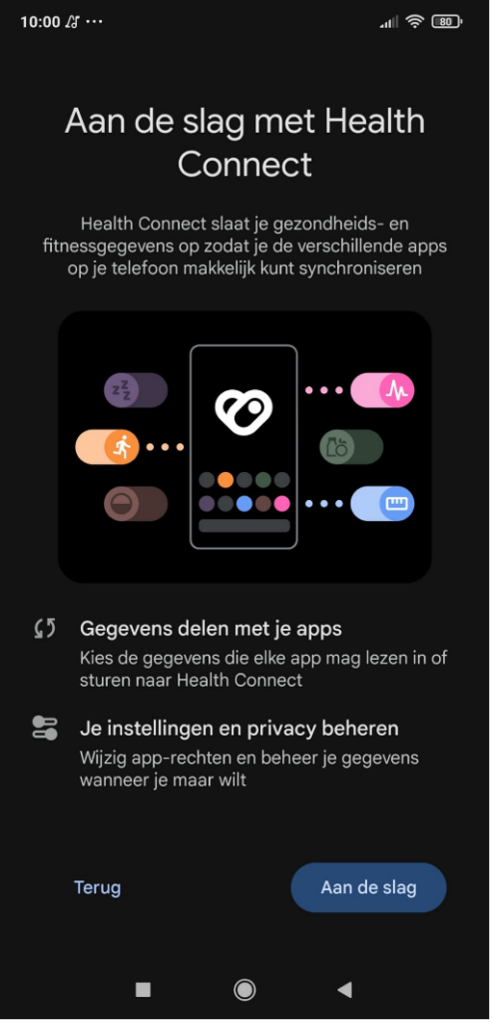
2. Under Data & permissions, tap App permissions
3. Find and select a source app of your choice from the list of Not allowed access (for example Google Fit)
If a certain source app isn’t listed yet, open that app and grant it the requested permissions.
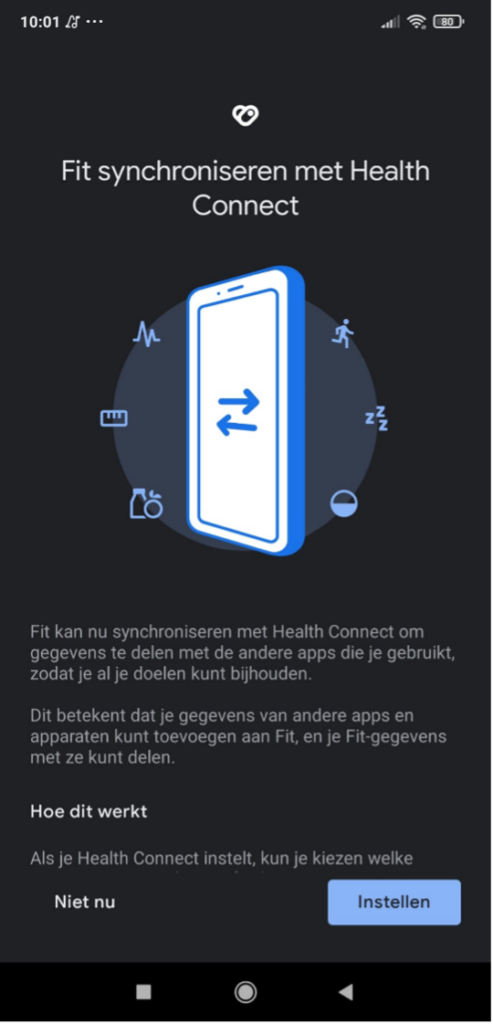
4. Select which data you want to share, we strongly recommend selecting “Allow all” to ensure full functionality.
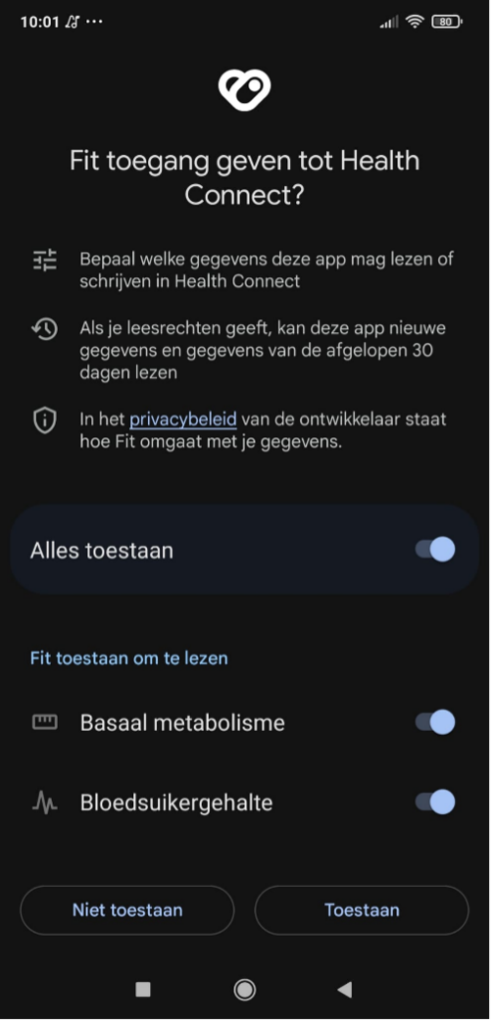
5.Tap Allow
Step 3: Open Fitcoins and start earning
You’re almost ready! Once the app permissions have been granted:
Open the Fitcoins app
Create an account and follow the instructions — you will also be asked to connect Health Connect during this process
Your activity data will be automatically synchronized through Health Connect
You can earn Fitcoins based on your activity